
Guide
How to Install MovieBox on Android, Step by Step
The calm way to install MovieBox: fetch the file, allow the install, open the app, and switch the permission off again.

On this page
Before You Start
Installing MovieBox APK download takes about three minutes, and most of that is the download itself. You need an Android phone or tablet with enough free space for the app plus whatever you plan to download later. A movie needs room beyond the app itself, so free a little space first if the phone is nearly full.
MovieBox is not on the Play Store, so the phone will ask for a permission during the install. That is normal Android behaviour for apps installed from a file, and the steps below switch it off again at the end.
Get the File from the Download Page
Open the MovieBox download page and wait for the short countdown. When the button appears, tap it and let the APK file finish downloading. Do not open it while it is still downloading: a half-finished file will not parse, and the error message will blame the app instead of the download.
Allow the Install and Confirm
Tap the finished file. Android will ask whether your browser may install apps: allow it for this one file and tap Install. Keep Play Protect switched on and read any warning before you tap through it.
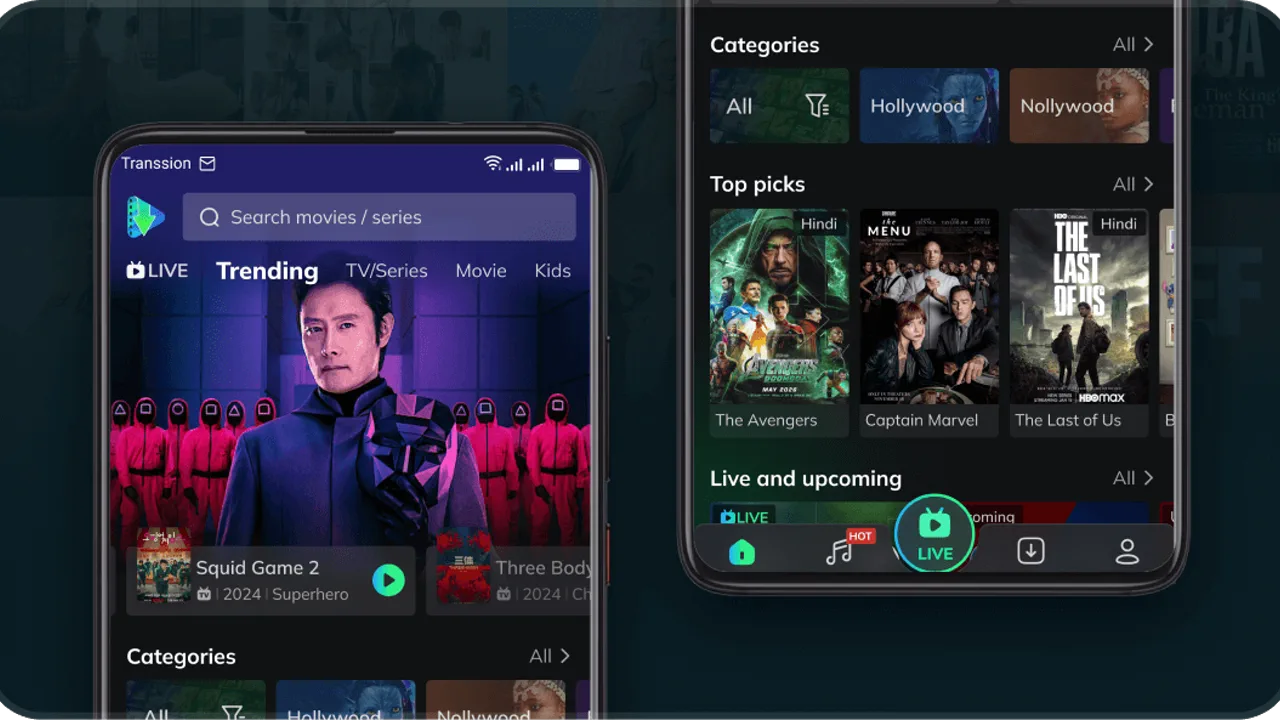
When the install finishes, open MovieBox from your home screen. The home screen loads with trending titles and no sign-in prompt, which is the first sign the install went well.
First Open: What to Check
On first open, tap a trending title and press play. If the video starts, the install is good. Then open Settings, then Apps, then MovieBox, and confirm the package name reads com.community.mbox.ng. That check takes ten seconds and is worth doing on every install.
If the phone says the app is not installed, the usual cause is a half-finished download or an older MovieBox with a different signature. Download the file again, and the safety checks guide covers what to compare before you try again.
The first evening: what to watch first
The first evening with MovieBox should be a test drive, not a commitment. Pick one film you already know well and one episode of a show you have never seen. The familiar film tells you whether the picture and sound match what you expect, and the new episode tells you whether browsing and discovery feel natural. Watch the film first: if the player stutters or the subtitles lag on a title you know by heart, the problem is the setup, not the title.
While you watch, try the three controls you will use every night: pause and resume, the quality picker, and the download button on a single episode. Pause should return exactly where you stopped, the quality picker should change without restarting the stream, and the download should queue in the background while you keep watching. If all three behave, the app is set up properly, and the rest of the evening is just picking what to watch next.
Conclusion
Fetch the file, allow the one-time install permission, open the app, check the package name, and switch the permission off again. Five steps, three minutes, and MovieBox is ready for the evening.
Quick Answers
Is MovieBox free to install?
Yes. The app is free to download and free to watch, with no account needed to start.
Why does Android ask for permission?
Android asks whenever an app is installed from a file instead of a store. Allow it for this one file only, then switch it off again after the install.
What if the phone says app not installed?
The download probably stopped halfway, or an older MovieBox with a different signature is already on the phone. Download the file again and compare the package name.
Do I need an account to open MovieBox?
No. You can browse, search and play without signing in.