
Guide
How to Download Movies in MovieBox for Offline Watching
Download whole movies or full seasons in MovieBox, find them again, and keep them safe through updates.

On this page
How Downloads Work in MovieBox
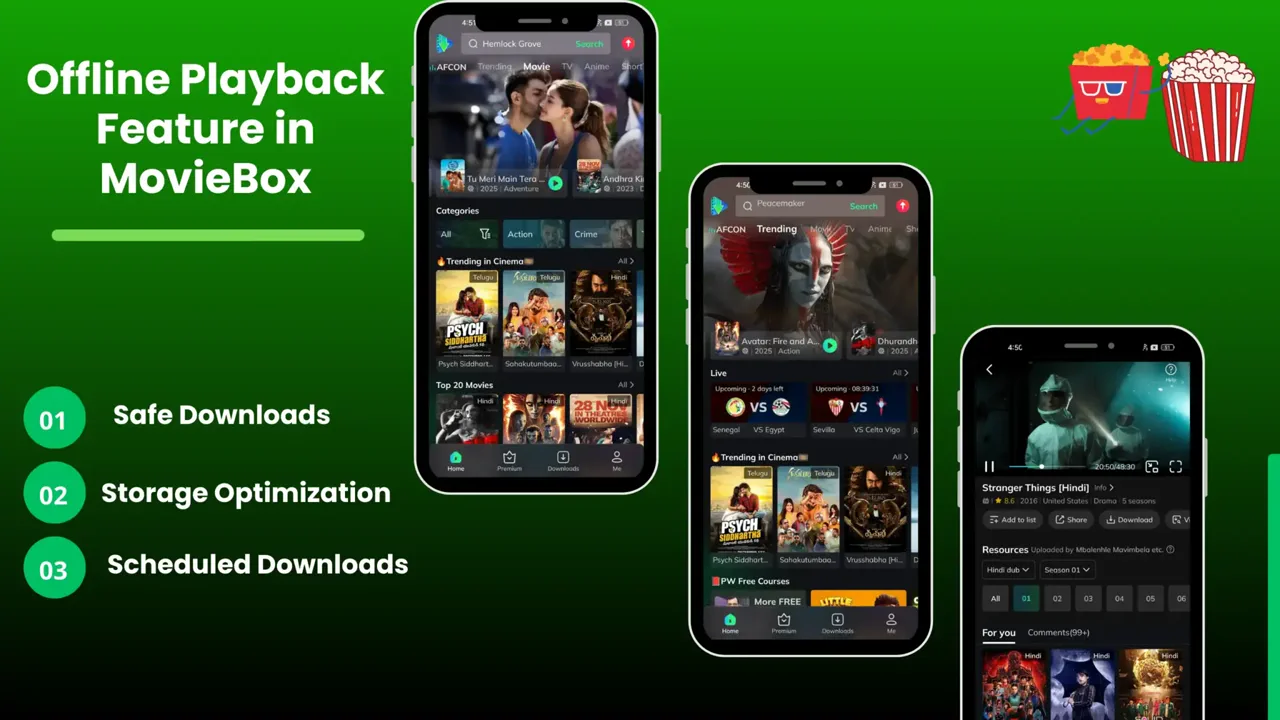
Offline downloads are one of the best reasons to keep MovieBox APK for Android on the phone. Open any title, tap Download, and the file lands in the Downloads tab, where it stays available with no connection at all. Downloads keep going in the background, even with the screen off, so a movie can finish while the phone sits in your pocket.
Each title page offers its own download button, and series offer downloads per episode, so a full season can be queued one episode at a time.
Download a Movie or an Episode
Open the title page and tap Download. The file appears in the Downloads tab with a progress bar. Wait for it to finish: a half-finished file will not play, and the error will blame the app instead of the download.
For series, open the episode list and download the episodes you want. Start with the first two or three rather than the whole season if space is tight: a full season of downloads is the fastest way to fill a phone.
Find Your Downloads and Play Them
Downloads live in the Downloads tab on the bottom bar. Tap any finished file to play it offline, in the same player as a stream, with the same subtitle and quality controls.
If a download is missing from the tab, check the phone's free space and the file's progress. A download that stopped at 99 percent is usually a full phone, not a broken file.
Keep Downloads Safe Through Updates
Downloads vanish when the app is uninstalled or its storage is cleared, so never clear storage to fix a stuck download, and never uninstall to update. The MovieBox download page and the update guide both say the same thing: install every update over the old app, then check the Downloads tab before you change anything else.
Downloads and storage: the numbers
Downloads are only useful if you know what they cost in storage, and the numbers are easy to work out before you tap download. A film at standard quality takes roughly the space of a few hundred photos, and a full season of a show takes several times that. Check the free space in the phone settings before a trip, not after the downloads fail halfway: the app needs the full file size free, plus a little room to work, and a phone with almost no free space will stall downloads without a clear error.
Keep two habits. First, download at home on Wi-Fi the night before, not on the road on mobile data: the same file costs nothing on Wi-Fi and eats a data plan on the road. Second, delete what you have finished. A finished film still takes its space until you remove it, and a Downloads tab full of watched titles is the usual reason the next download fails. One minute of tidying after each film keeps the next trip ready.
Conclusion
Download the titles you will actually watch, let them finish, and guard them by updating over the old app. Offline MovieBox is the version of the app that never buffers.
Quick Answers
Where do MovieBox downloads go?
To the Downloads tab on the bottom bar. Finished files play there offline, in the same player as streams.
Can I download a whole season?
Yes, episode by episode from the title page. Start with a few episodes if space is tight.
Why did my downloads disappear?
The app was uninstalled, or its storage was cleared. Both wipe downloads. Clear the cache only, never the storage.
Do downloads keep going with the screen off?
Yes. Recent updates keep background downloads running even when the screen turns off.