
Guide
MovieBox Subtitles: Setup, Sync and Fixes
Subtitles in MovieBox: turn them on, pick a language, fix sync drift, and sort out missing subtitle tracks.

On this page
Turn Subtitles On
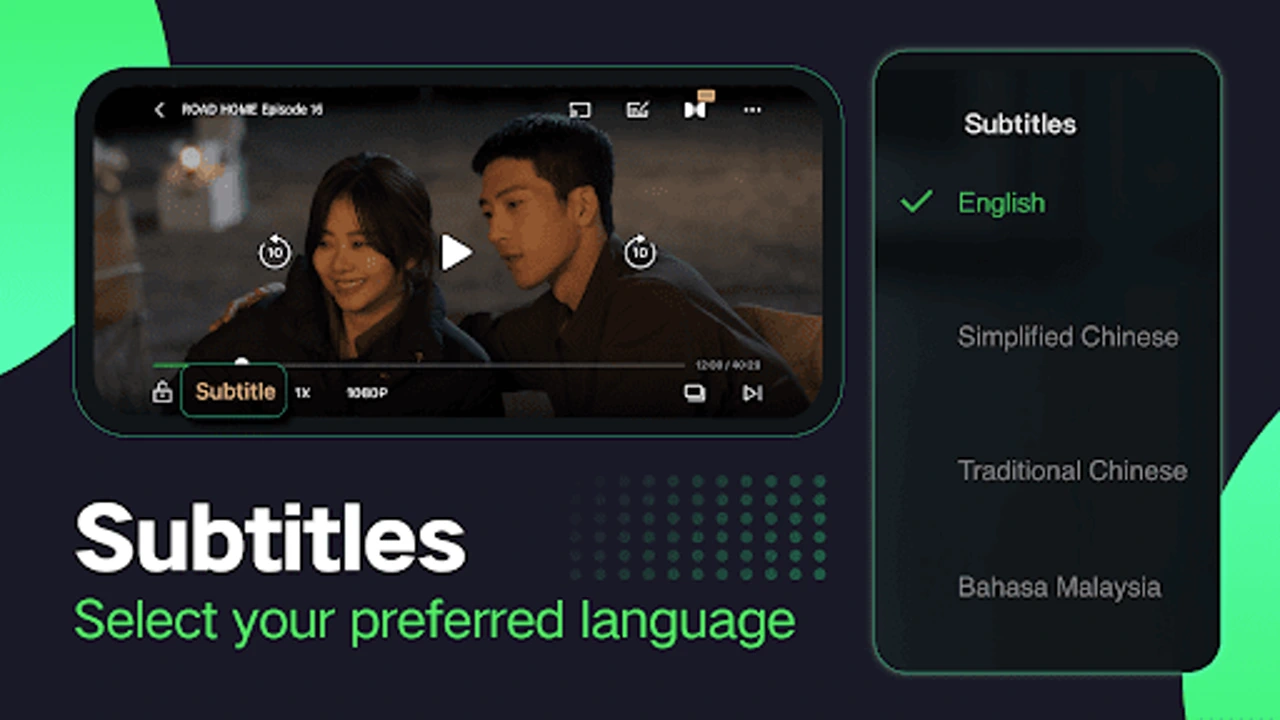
Subtitles in the MovieBox streaming app live inside the player, not in the phone settings. Start any title, tap the player controls, and open the subtitle menu. Pick a language from the list offered for that title: the languages available depend on the title, so a film may offer five languages while a series offers two.
If the subtitle menu is empty for a title, that title simply has no subtitle track. Try another quality for the same title, or another episode: subtitle tracks are attached per source, not per app.
Fix Sync Drift and Size
Subtitles that lag or run ahead are the most common subtitle complaint, and the fix sits in the same menu. The subtitle delay control nudges the text forward or back until it matches the speech. Move it in small steps and watch a full line of dialogue before you nudge again.
Subtitle size is set in the same place. Larger text helps on a small phone, smaller text keeps more of the picture visible on a tablet or a TV.
When Subtitles Are Missing
Missing subtitles usually mean the title's source has none. Switch the quality, try another episode, or pick a different language version of the same title: a Hindi-dubbed version and an English-subbed version of one film can carry completely different subtitle tracks.
For anime, the subbed and dubbed versions are separate listings, and the anime guide shows how to tell them apart before you press play.
Subtitles for a Language You Are Learning
Subtitles do double duty for anyone learning a language. Watch a film in the language you are learning with subtitles in your own language first, then flip the subtitles to the same language as the audio and read along as you listen. The delay control matters here more than anywhere: a subtitle that lands a half second late breaks the link between the word you hear and the word you read.
Keep the subtitle size large enough to read without leaning in, and pick titles with clear, slow dialogue for practice. A drama with long conversations teaches more than an action film with ten lines, and the episode list of a series gives you a new lesson every night.
Subtitles for a second language
Subtitles do more than translate: they are the easiest way to watch in a language you are learning. Pick a show you already know in your own language, switch the audio to the language you are learning, and keep the subtitles in your own language. You will follow the story while your ear gets used to the sounds, and the subtitles fill the gaps where the words run together.
When you are ready for the harder version, flip it: audio in the language you are learning, subtitles in the same language. Now the words on screen match the words you hear, and reading along teaches the spelling of the sounds you keep missing. The sync control matters here more than anywhere, because a subtitle that lags half a second behind the voice teaches the wrong rhythm. Nudge the delay until the words land with the mouth, then leave it alone for the whole episode.
Conclusion
Subtitles are a per-title, per-source feature: pick the language in the player, nudge the delay in small steps, and switch the quality when a track is missing. The player does the rest.
Quick Answers
How do I turn on subtitles in MovieBox?
Open the player controls during playback and pick a language from the subtitle menu.
Why are my subtitles out of sync?
Nudge the subtitle delay in the player menu, in small steps, until the text matches the speech.
Why does a title have no subtitles?
That title's source has no subtitle track. Try another quality or another episode of the same title.
Can I change the subtitle size?
Yes, in the player subtitle menu. Larger text helps on phones, smaller text suits tablets and TVs.