
Guide
MovieBox Video Quality: From 360p to 4K, Picked Right
Pick the right MovieBox quality for your connection and your screen: 360p, 720p, 1080p or 4K, and when each one makes sense.

On this page
The Quality Steps
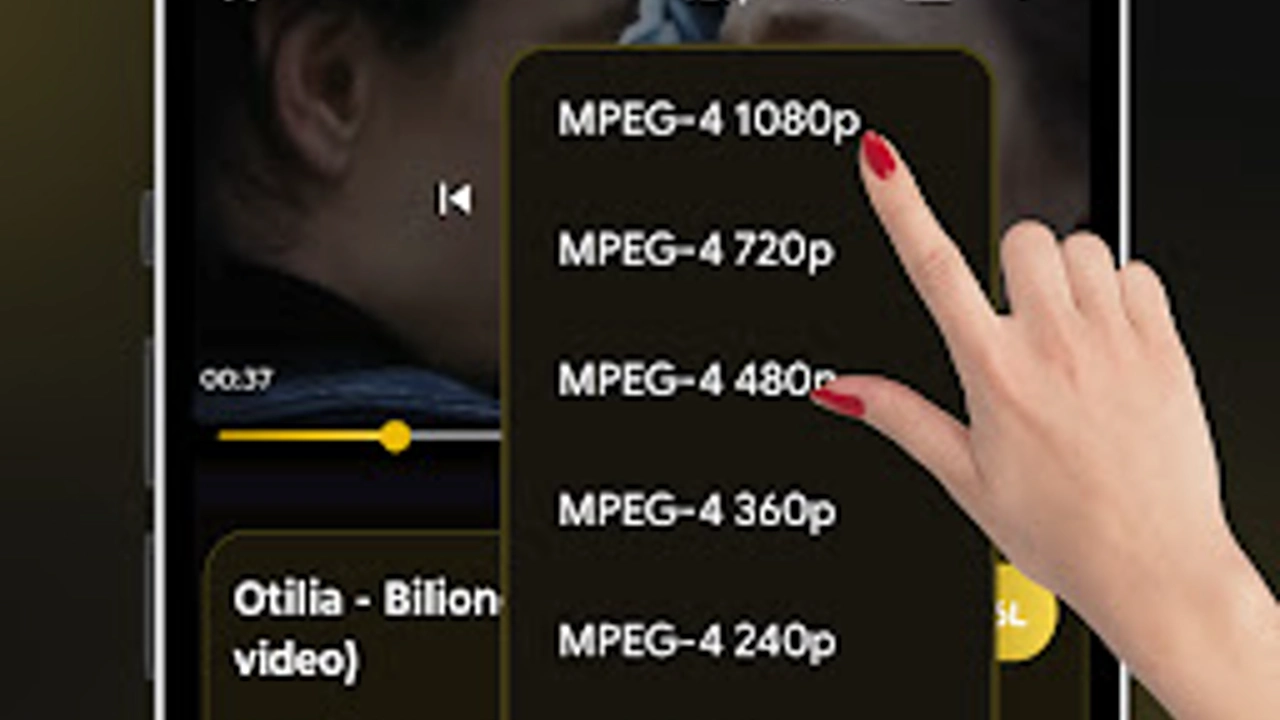
MovieBox offers four quality steps in the player: 360p, 720p, 1080p and 4K. Each step doubles the appetite of the one below it, so the right choice is the highest step your connection can carry without stalling. The MovieBox APK download page carries the app, and this guide covers what to do with it once it is playing.
Pick by Screen, Not by Pride
On a phone screen, 720p looks good and 1080p looks great: the difference between them is small on six inches of glass. On a tablet, 1080p earns its keep. 4K only makes sense on a big TV with a strong connection, and on a Firestick it is the first thing to drop when a stream stutters.
Start at 720p, watch for a minute, then step up. A stream that plays smoothly at 720p and stutters at 1080p has told you exactly what your connection can do.
Pick by Connection
On mobile data, 720p is the honest default, and 360p is the right call on a weak signal. On home Wi-Fi, 1080p is comfortable for most connections, and 4K is for the evenings when the Wi-Fi is yours alone.
If a stream buffers, the quality control is the first fix, not the last: the buffering guide puts it first for a reason, and the TV setup guide covers the quality that suits a stick.
When 4K Looks Worse Than 1080p
A 4K stream on a weak connection is not a better picture: it is a sharper picture that stops every few seconds. A smooth 1080p stream beats it every time, because the eye forgives a softer picture and never forgives a frozen one. If the stream stutters at 4K, step down at once instead of waiting for the connection to improve on its own.
The same rule holds on a TV stick. A stick on Wi-Fi across the room gets a weaker signal than a phone in the hand, so start it at 1080p and step up only after a minute of smooth play. The stream will tell you what it can carry if you let it.
Quality on a shared connection
Quality choices change when the connection is shared, because your stream is not the only one on the Wi-Fi. A household with two people streaming, a video call, and a game downloading will choke on a 4K stream that plays perfectly when the house is empty. The fix is to pick the quality for the house, not for the phone: one step down during busy hours, full quality late at night when the connection is yours alone.
Agree on the rule once and stop negotiating it every evening. Downloads are the peace treaty: download the film on Wi-Fi in the afternoon, watch it locally in the evening, and the shared connection never feels your stream at all. A downloaded film uses the Wi-Fi once, when nobody is watching, and a streamed film uses it all evening, when everybody is.
Conclusion
Quality is a match between screen and connection: 720p on phones, 1080p on tablets and good Wi-Fi, 4K only on a big screen with a strong connection. Start low, step up, and let the stream tell you when to stop.
Quick Answers
What quality should I pick in MovieBox?
720p on a phone, 1080p on a tablet or good Wi-Fi, 4K only on a big TV with a strong connection.
Why does 4K buffer?
4K needs a strong, steady connection. Drop to 1080p and the stream usually settles at once.
Is 360p worth using?
Yes, on a weak mobile signal. It keeps playing where higher qualities stall.
Does quality affect downloads?
Yes. Higher quality means a larger file and a longer download. Pick the quality before you tap Download.