Guide
MovieBox on Android TV and Firestick: The Setup That Works
Sideload MovieBox onto an Android TV or Firestick, navigate it with the remote, and get full screen playback.

On this page
What You Need
MovieBox on a TV starts with sideloading, because the app is not in the TV app store. You need an Android TV or Firestick, the Downloader app from the TV store, and the MovieBox APK file from the download page on this site. The whole setup takes about ten minutes, and most of that is waiting for the download.
Install It on the TV Stick
Open Downloader on the TV and enter the address of the MovieBox download page. Download the APK file, open it, and allow the install when the TV asks. The app appears in the apps list, usually under a name you may need to scroll to find.
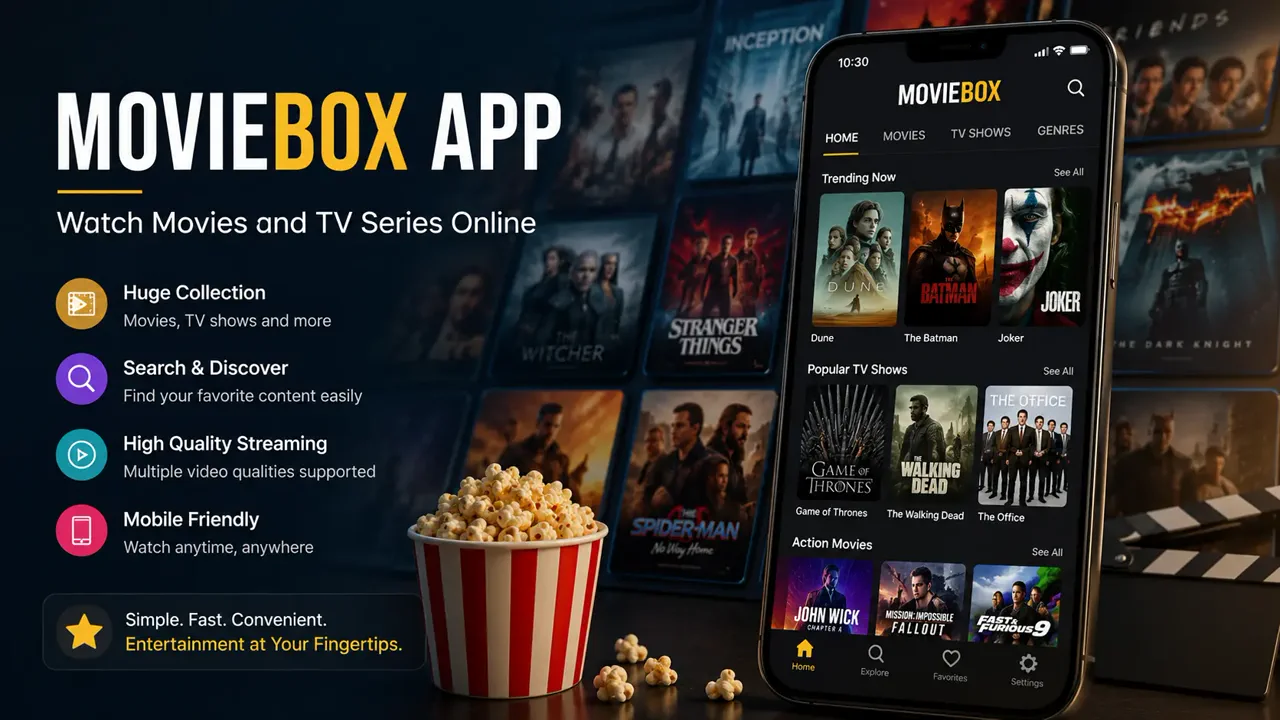
Open MovieBox once and let the home screen load. If it loads, the install is good: the TV version is the same app as the phone version, with the same rows and the same player.
Navigate With the Remote
MovieBox is built for touch, so a TV remote is the awkward part. The directional buttons move between rows and titles, and the select button opens what is highlighted. For anything fiddly, such as typing in search, a mouse toggle app or the phone remote app for your TV makes life much easier.
Playback itself is the easy part: full screen, with the same quality and subtitle controls as the phone. Pick 1080p rather than 4K on a stick with a weak connection, and the evening runs smoothly.
If It Will Not Open on the TV
A TV install that refuses to open usually means a half-finished download or a stick with no free space. Download the file again in Downloader, free some space on the stick, and try once more. The install guide covers the permission steps, which work the same way on a TV as on a phone.
The remote-only evening
A TV evening lives or dies on the remote, so set the app up for remote-only use before anyone sits down. The home screen should open straight onto the rows you browse: trending, continue watching, and the genre you actually watch. If the first screen is a search box or a settings page, the evening starts with fumbling, and someone will reach for the phone instead of the remote.
Keep the remote routine to four buttons: up and down to browse, OK to open, back to leave. The moment you need the directional pad to reach a tiny button at the edge of the screen, the layout is fighting you, and the fix is usually a bigger text size in the TV settings rather than anything inside the app. Test the whole routine once with the remote alone, from opening the app to starting a film, and if any step needs the phone, fix that step before movie night.
Conclusion
Downloader, the APK, one install, and a mouse toggle for the fiddly bits: that is the whole TV setup. After that, MovieBox on the big screen is the same pocket cinema, only bigger.
Quick Answers
Is MovieBox available on the TV app store?
No. It sideloads through the Downloader app, using the same APK file as the phone.
How do I navigate MovieBox on a Firestick?
The remote moves between rows and titles. A mouse toggle app helps with search and small buttons.
What quality should I pick on a TV stick?
1080p on most sticks. 4K needs a strong connection and a stick that can carry it.
Will my phone downloads work on the TV?
No. Downloads live on the device that downloaded them. Download titles again on the TV if you want them offline there.